


In Tally, it is possible to record credit sales entry in the following accounting vouchers: Sales Voucher Journal Voucher Generally, sale entries whether credit sales or cash sales are recorded in the Sales vouchers. Also, I strongly recommend you to record sales entries in the Sales voucher only aRead more
In Tally, it is possible to record credit sales entry in the following accounting vouchers:
- Sales Voucher
- Journal Voucher
Generally, sale entries whether credit sales or cash sales are recorded in the Sales vouchers. Also, I strongly recommend you to record sales entries in the Sales voucher only as it can record various aspects related to credit sales like the sales order number, delivery note number, particulars of creditor and much more.
In this answer, I have shown the steps to record a credit sales entry into the Sale voucher. My answer is based on Tally Prime, the latest version of Tally. If you are using Tally ERP 9, there will be only a few areas of differences which are not that significant.
Steps to record credit sales in Sales voucher
To record credit sales entry, you have to first open the Sales voucher creation window. To open the Sales creation window, the steps are as follows:
Gateway of Tally → Voucher → Press F8
The Sales voucher creation window will open and will look like this:
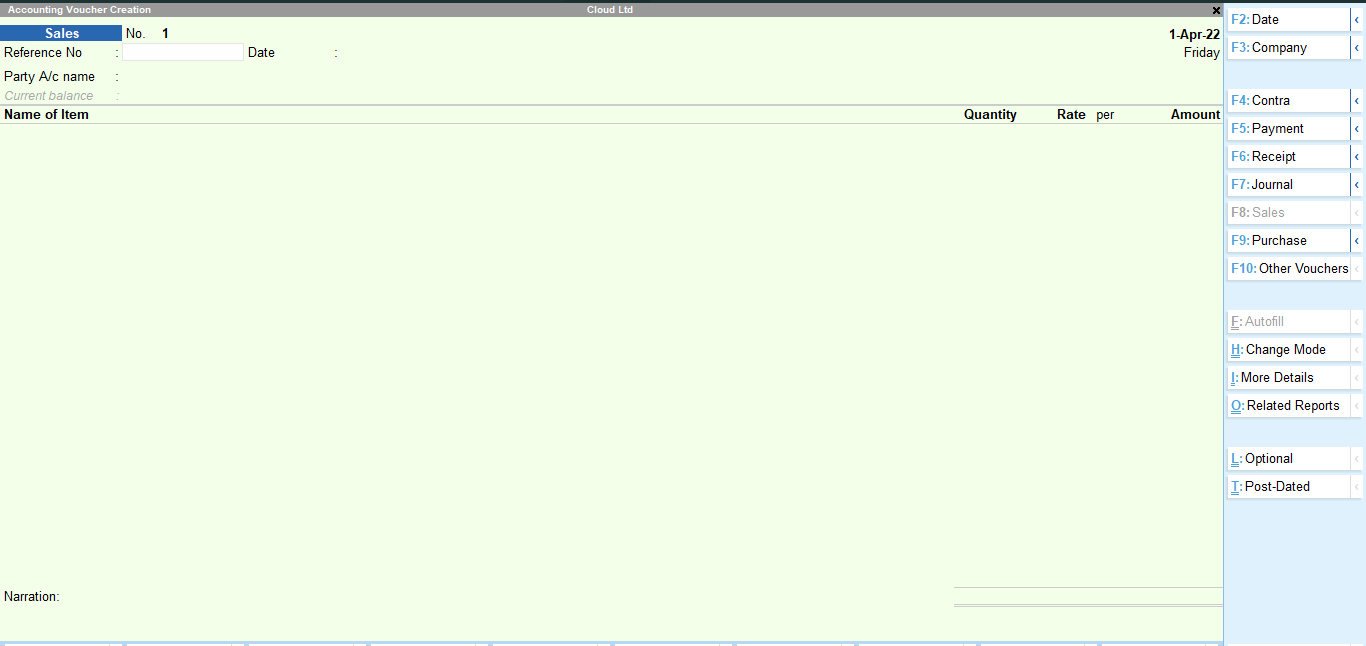
Now, there are three modes to the sales voucher which you can be accessed and changed from the ‘Change mode’ option in the right-hand side menu or by simply pressing Ctrl + H. Upon pressing Ctrl + H, the Change mode option will open.
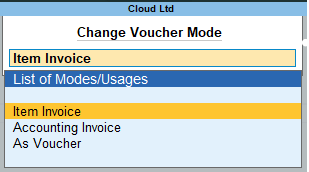
I will recommend you to use ‘Item Invoice’ mode. It looks like an invoice and it is easier to use and understand. The image of the sale voucher given is in the item invoice only.
Now to have to fill in the following details:
- Reference number of the sale entry if there is any
- Select the Party name or the name of the debtor (Press ALT + C if you want to create a new debtor)
- The dispatch details menu will open. Enter the details if you want otherwise leave them blank.
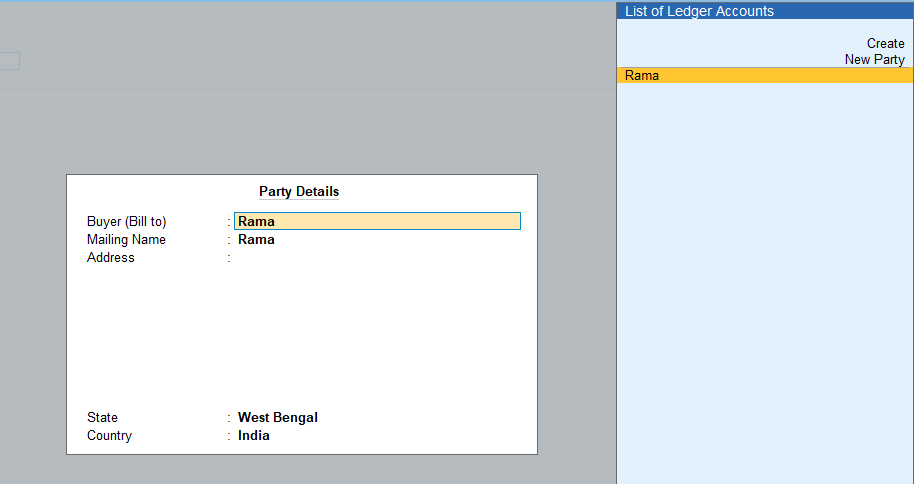
- The party details menu will open asking again for the party name and party’s other details.
- Select the name of the item to be sold (Create stock item if not created before by pressing Alt + C when in Name of Item field)
- Enter the quantity and rate of the item and the total amount will be auto-populated.
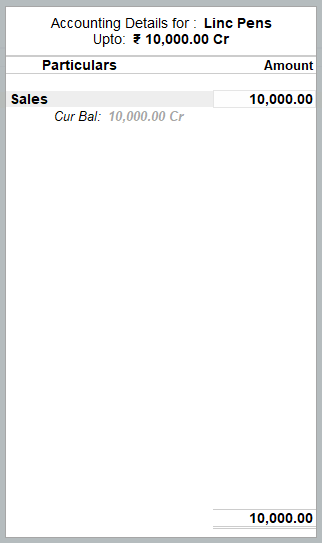
- After it, the accounting details menu will open where you have selected the sales account you want to credit. If a sales account is not created, press ALT + C to create it.
- Enter narration if you desire and finally accept the voucher.
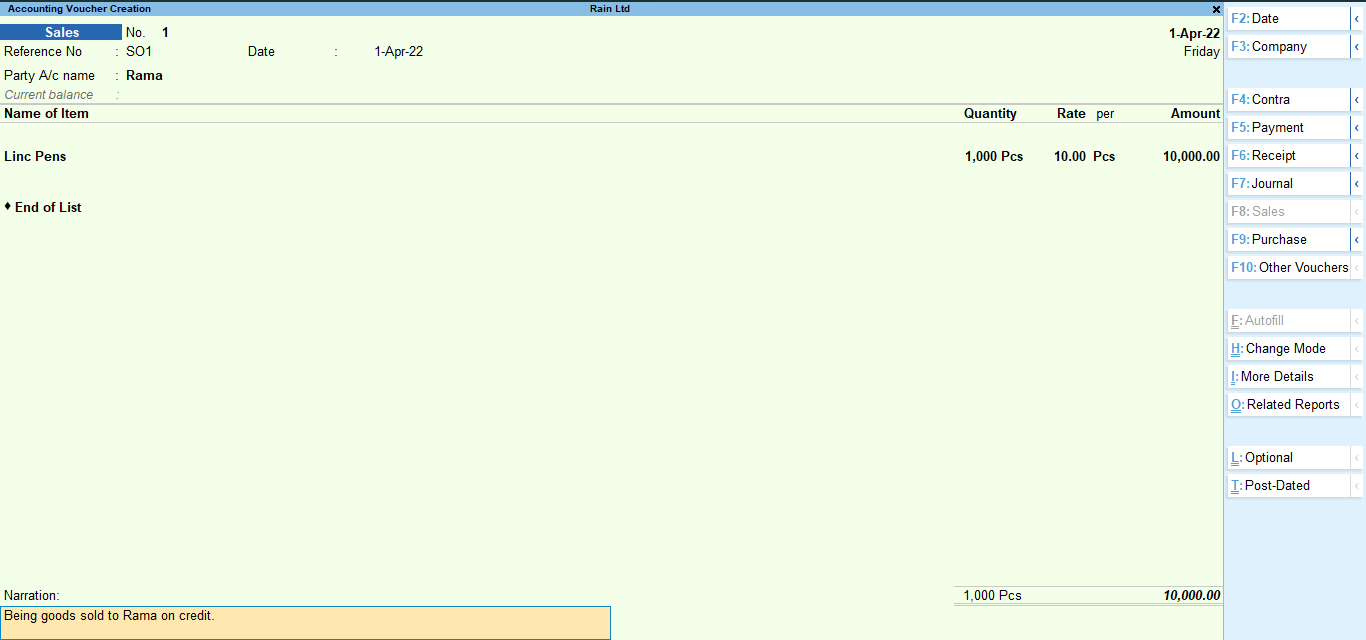
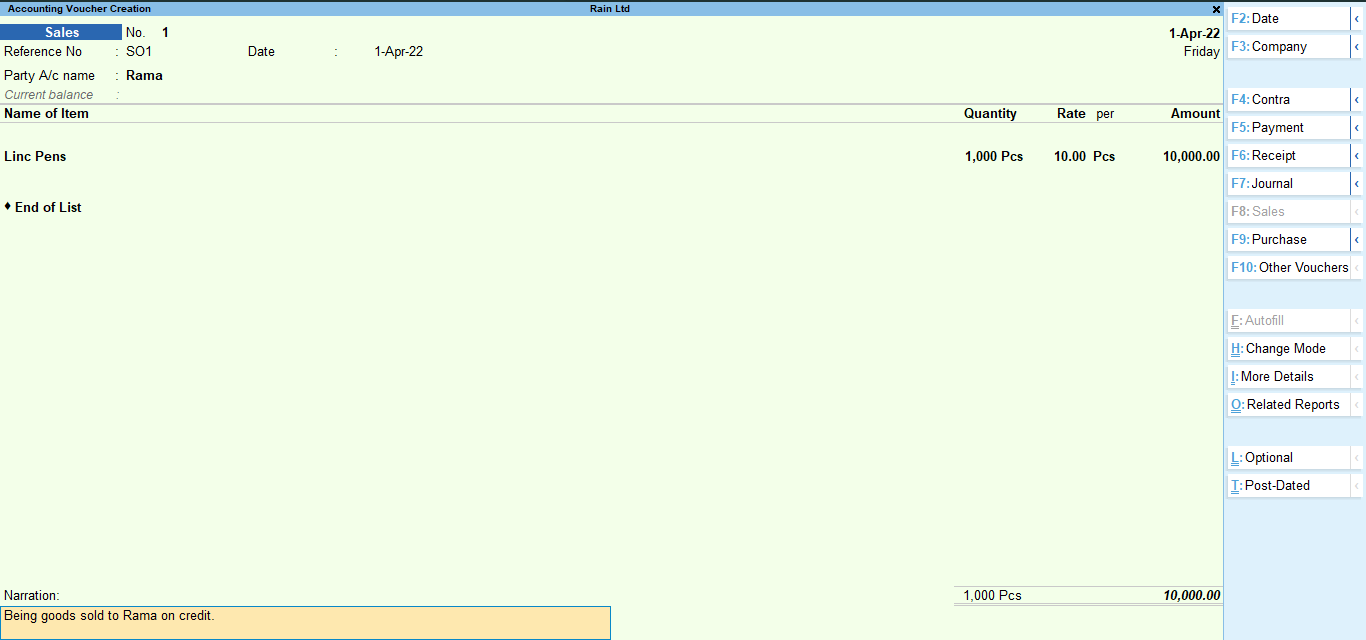
This is a completed sales voucher:
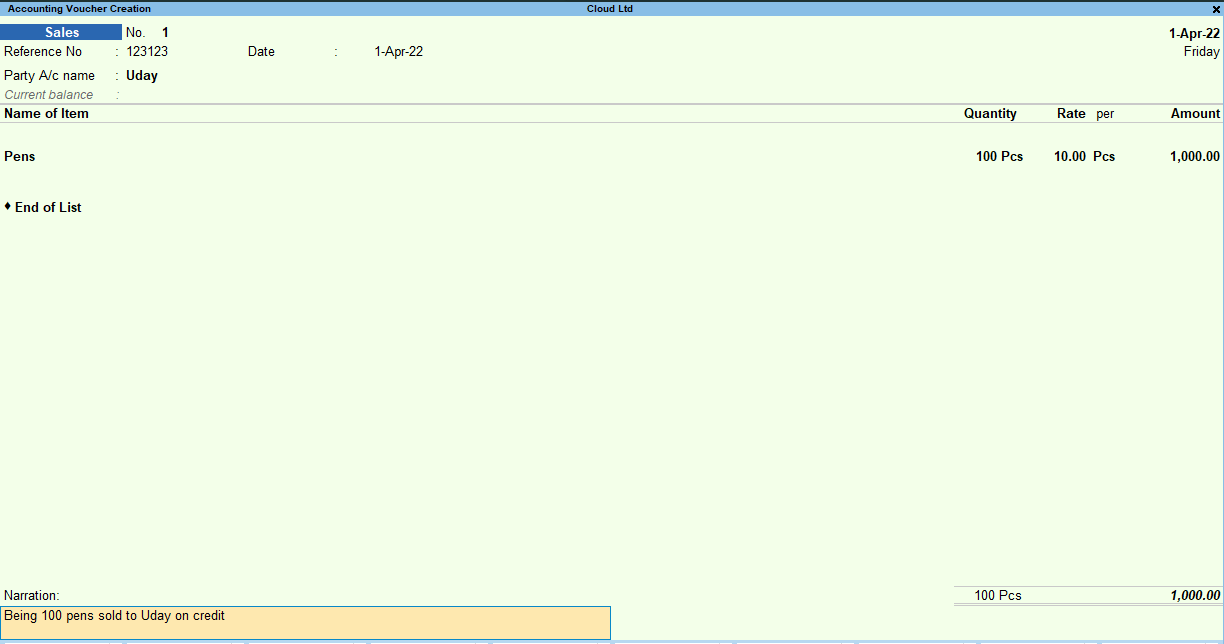
Hence, this is how you have recorded a credit sales entry in the sales voucher.
See less





Tally ERP does not have a voucher for recording closing stock journal entries. It automatically calculates closing stock and reports it in the Profit and Loss account and Balance sheet. However, Tally do have vouchers through which you can adjust the closing stock to be shown at the end of the year.Read more
Tally ERP does not have a voucher for recording closing stock journal entries. It automatically calculates closing stock and reports it in the Profit and Loss account and Balance sheet.
However, Tally do have vouchers through which you can adjust the closing stock to be shown at the end of the year.
Explanation
Tally, as we know is an ERP which can automate many aspects of accounting like calculation of ledger balance, creation of trial balance, financial statements and other reports. Only the data entry in vouchers is done manually.
Tally also calculates closing stock automatically because it already has the required data to do so.
Closing stock = Opening stock + Purchase – Cost of goods sold.
Using the above formula, Tally automatically calculates the closing stock.
But it may happen that the closing stock as per Tally and closing stock as per physical verification of stock do not match.
This may be due to damaged caused to some items of inventory or even theft of inventory items which is usually discovered when stock is physically checked and counted at the end of the financial year.
In that case, we can use the Physical Stock voucher to correct our closing stock in Tally.
Physical Stock Voucher
A physical Stock voucher is an inventory voucher which is used to adjust the amount of closing stock as per the physical stock verified at the end of the year.
Suppose, if the closing stock for Bricks is 500pcs. Like in my stock summary, the item ‘Bricks’ is shown in the image below:
But after physical verification, it was found that there around there are only 450pcs of whole bricks are there. The rest of the bricks were broken.
To rectify this, we will open a Physical Stock voucher.
The steps to open a Physical stock voucher are as follows:
In Tally ERP 9 : Gateway of Tally → Accounting Vouchers → Press Alt + F10
In the physical stock voucher, we will select the stock item and enter the correct quantity, which is 450pcs.
After entering the details above, accept the voucher and open the stock summary again from Gateway of Tally. It will show the Bricks at 450pcs.
Hence, this is how we can adjust our closing stock in Tally.
See less